Start Flow
Starts a Flow and continues without waiting for its completion.
This action starts execution of a Flow and immediately continues the execution of the main Flow without waiting for the child Flow to complete. Execution of the child Flow is entirely disconnected from the main Flow, so any logs or output data from the child Flow cannot be read or associated with the main Flow.
If you need to run a Flow inside another Flow and wait for its completion, or get the value returned from it, use the Run Flow action instead.
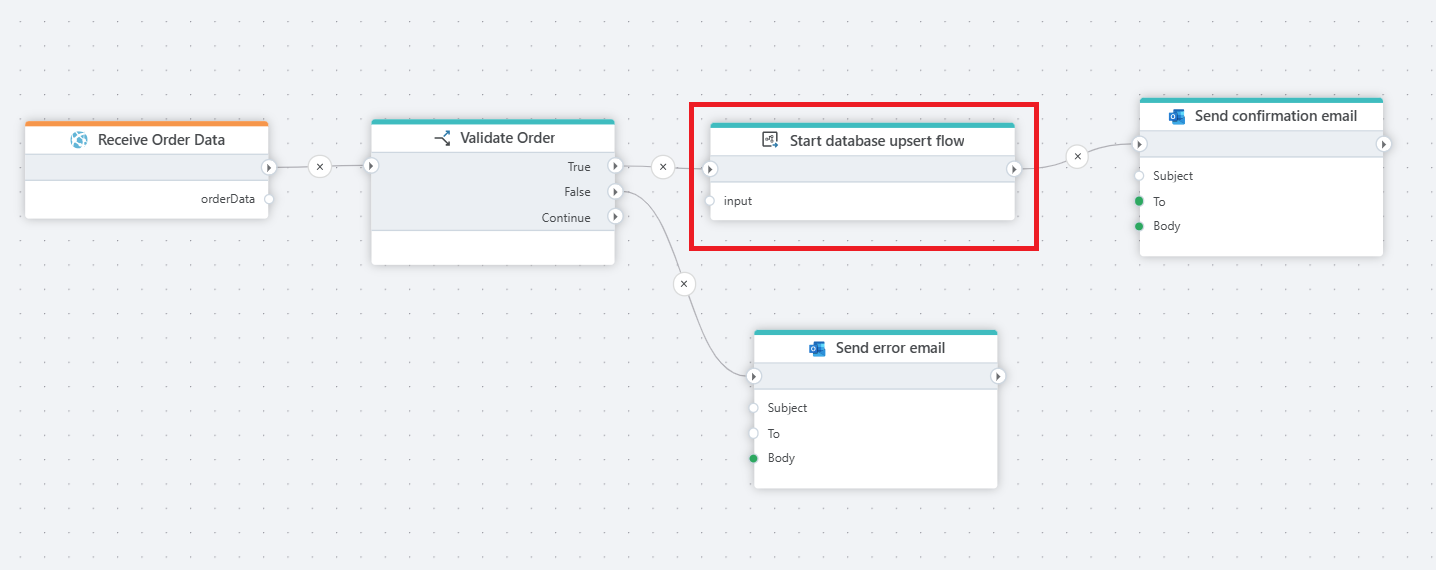
Example 
This flow receives order data, checks if it contains the necessary details, and then updates or inserts the order into the database. Once the order is saved, it sends a confirmation email to the user.
Properties
| Name | Required | Description |
|---|---|---|
| Title | No | The title of the action. |
| Workspace | No | To run a Flow in a different Workspace than the host Flow, specify the Workspace here. Note that if you point to a variable, the Flow selector will not display any options as the actual Workspace ID is only available at runtime. |
| Flow | Yes | The name of the flow to start, choose existing flow from the dropdown list. |
| Input | No | The input data passed to the flow. |
| Semaphore name | No | The name of the semaphore used to limit the number of simultaneous Flow executions and to serve as the completion synchronization point. |
| Semaphore max slots | No | The maximum number of leases (simultaneous Flow executions) the semaphore allows. Default is 5. When this threshold is reached, no more Flows can be submitted until one completes. |
| Description | No | A description of the action. |
Using Semaphores to throttle and synchronize concurrent Flow executions
Semaphores limit concurrent actions or Flow executions, acting as a synchronization point. Use them to:
- Fan out work across parallel Flows and wait for all of them to complete before continuing.
- Throttle or synchronize work within a specific scope — such as a department, database, or business domain — to prevent race conditions or guard against resource exhaustion (memory, network I/O, disk).
Multiple semaphores with different names can coexist in a Workspace, letting you create separate execution groups — such as one per Flow, one pr business area, or ones that span several Flows.
A semaphore has two properties:
- Name — identifies the semaphore, scoped to the Workspace. All Flows in the same Workspace share a semaphore with the same name.
- Max slots — the maximum number of Flows that can execute concurrently.
Note
All Flows in the same Workspace share a semaphore with the same name.
The following rules apply:
- Name is scoped to the Workspace — all Flows in the same Workspace share a semaphore with the same name.
- The first action to run creates the semaphore and sets its
max slots. Max slotsremains fixed until all leases have been released.- Once all leases are released, the next caller to acquire a lease sets the new
max slots.
Example - throttling the number of simultaneous Flows to run from a single Flow
Suppose you want to run 30 data imports in parallel, but resource constraints (networking, memory) mean no more than 6 can run simultaneously. Once all imports finish, the Flow should continue to the next step.
To set this up:
- Use a Declare variable to create a GUID.
- Create a loop that kicks off multiple
Start Flowactions. - Pass the GUID as the semaphore
namein eachStart Flowaction. This creates a semaphore local to the current Flow. - Set
Max slotsto6. - After the loop, add an Await semaphore released action to block until all 30 imports have completed.
Example - create a shared Flow execution barrier within a Workspace
If your solution handles cross-cutting concerns across business areas (e.g. departments), you may need to ensure only one Flow processes data for a given department at a time.
To do this:
- Pass the department ID to the
Semaphore nameproperty of theStart Flowaction — and make sure all other Flows do the same. This creates one semaphore per department across all Flows in the same Workspace. - Set
Max slotsto1to ensure only one Flow can process data for that department at a time.