REST API Request with paging
Use the REST API Request with paging action to call Dynamics 365 Business Central v2 APIs and retrieve large amounts of data. A typical use case is building data integrations that pull data from Dynamics 365 Business Central into a data platform.
Note
This action also works for APIs that do not return paged responses, in which case the response contains only a single page.

Example 
This flow pulls general ledger transactions for every company in a Business Central environment into a database — a nested-paging integration. Get companies calls the Business Central API at its URI and returns the companies one page at a time through the For each companiesResultPage port. foreach company iterates the companies in each page (items) and exposes the current company. For each company, Get general ledger transactions calls the API again and pages through the matching entries via For each generalLedgerEntries, and Save GL transactions to db writes each batch to the target database. Use this pattern when you need to fan out a paged request per parent record — here, one general ledger query per company — and stream the result straight into a data platform.
Properties
| Name | Required | Description |
|---|---|---|
| Connection | Yes | The Dynamics 365 Business Central connection used to make an authenticated request to the Dynamics 365 Business Central API. |
| Dynamic connection | No | Use this option if you need to create a connection using credentials stored outside the workspace, for example in your own Azure SQL or PostgreSQL database. When this property is defined, Flow uses the Dynamic connection at runtime and Connection only at design time. To dynamically create a connection, use the Create Dynamics 365 Business Central connection action. |
| Configuration | Yes | Defines the HTTP request to make to the API. See details below. |
Returns
The return type is defined when configuring the action. It can be a custom data type or the raw JSON response from the API.
We recommend the built-in HttpResponse<T> type because it includes additional information about the response, such as the HTTP status code and error(s).
We also recommend dumping the raw response to a data store, then using data transformation tools to shape it into a usable format. If the API returns small amounts of data (10 000 - 200 000 records), consider the Get JSON DataReader action to flatten the JSON to a tabular format and process the data as rows and columns, for example by inserting directly into a SQL Server table.
Configuration
To define a request to the Business Central API, you can start from a template or define it manually.
If you press the New Request button in the Configuration dialog, you can choose from a set of predefined request templates.
The Business Central API is large, so the template collection contains only a subset of the available APIs. If you cannot find a template for the request you want, see the Dynamics 365 Business Central v2 API documentation and define the request manually.
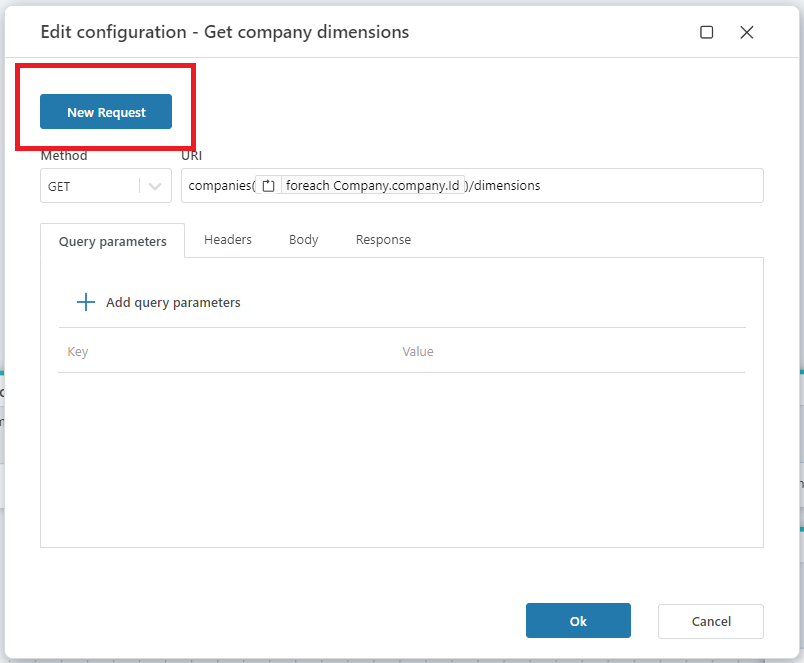
Defining a request manually
To define a request manually, see the Dynamics 365 Business Central v2 API documentation to learn which endpoint and parameters to use.
- Define the
Method(GET,POST,PUT, orDELETE). Most APIs for fetching data require theGETmethod. - Define the
URI. This is the API endpoint, for examplecompanies(id)/accounts. If the endpoint requires parameters (such as the company id above), insert a variable from Flow using the popup that appears when the URI editor gets focus. - Define the
Response. The default response type is HttpResponse<string>, so you get back the raw JSON response from the API. You can change the data type to a custom type, but this allocates more memory and is slower for large data sets such as dimensions and general ledger queries. We recommend dumping the raw response to a data store (such as a database or blob storage), then using tools such as dbt, SQLMesh, or Azure Data Factory to shape it into a usable format.
Response paging
The REST API Request with paging action handles paging automatically, returning one page at a time until the Dynamics 365 Business Central API returns no more pages.
Error handling
If the response from the Dynamics 365 Business Central REST API is set to HttpResponse<T>, the response object includes an IsSuccess property. When IsSuccess is false, the response has an ErrorContent property that relays the error messages from the API call or from internally thrown exceptions.
For other response types and for severe errors, the action raises an error that could terminate the Flow unless either the On Error port is connected or it is wrapped in a Try-Catch action.
The On Error handler is triggered for each page error, so you can handle errors individually and prevent Flow from raising an error that might terminate the running process.
API limits
The Dynamics 365 Business Central API has documented API limits.
The REST API Request with paging action handles the following limit automatically:
429 - Too Many Requests: Flow attempts to handle this limit by retrying the request using a retry policy. If the retries fail, an error is raised. You can handle this error in theOn Errorexecution port, for example by using the Wait action to perform a manual retry.