Convert DataTable or DataReader to Excel file bytes
Creates an Excel file from a DataTable or DataReader and serializes it as a byte array.
Tip
This action creates a file with a single sheet. To create a file with multiple sheets, or to add sheets to an existing Excel file, use Create or Open Excel workbook together with Add sheet to Excel workbook.
Example 
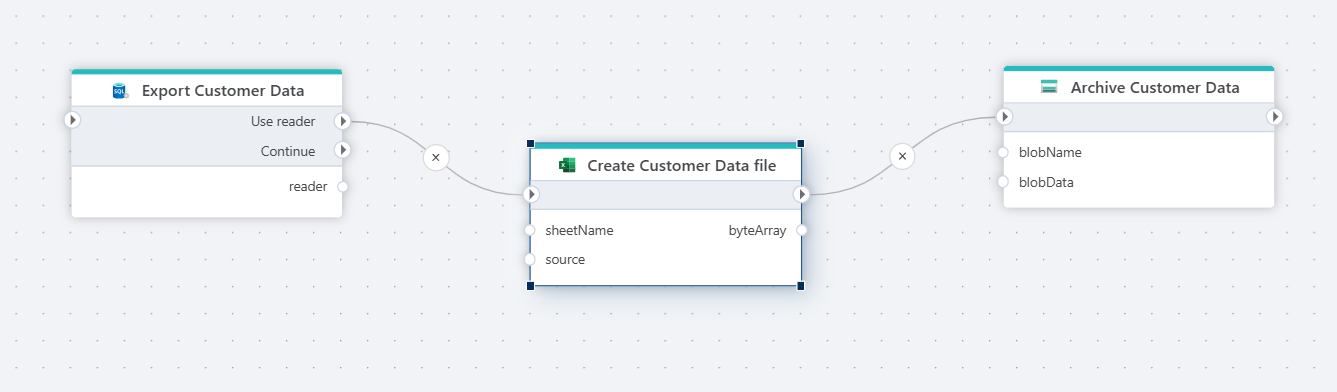
This Flow archives customer data from SQL Server as an Excel file. Export Customer Data (Get DataReader) queries the database and provides a reader in its Use reader branch. Inside that branch, Create Customer Data file uses the reader as source, writes the rows to a sheet named by sheetName, and returns the file as byteArray. Archive Customer Data (Upload Blob) then uploads the byte array to Azure Blob Storage as blobData. Use this pattern for scheduled exports and backups where the data fits in a single sheet.
Properties
| Name | Required | Description |
|---|---|---|
| Title | No | The title of the action. |
| Source | Yes | Specifies the source of the data, which can either be a DataTable or DataReader. |
| Sheet name | No | Specifies a worksheet name. |
| Column mapping | No | Defines the mapping between Excel column letters and business object property names. |
| Worksheet formatting options | No | Specifies detailed formatting options. |
| Byte array variable name | No | The name of the variable you can use to reference the byte array in other actions. |
| Disabled | No | When checked, the action is skipped during Flow execution. |
| Description | No | Additional notes or comments about the action or configuration. |
Returns
Returns the Excel file serialized as a byte array
Automatic column mapping
Columns can be mapped automatically by using the "Map from sample file" option.

Excel: Videos / Getting started
Send email with Microsoft 365 Outlook
This video shows how to export data to an Excel file, and send it as an email attachment using Microsoft 365 Outlook.