Chat feedback trigger
Defines the entry point for a Flow that handles thumbs-up and thumbs-down feedback for responses generated by the Invision AI Chat component.
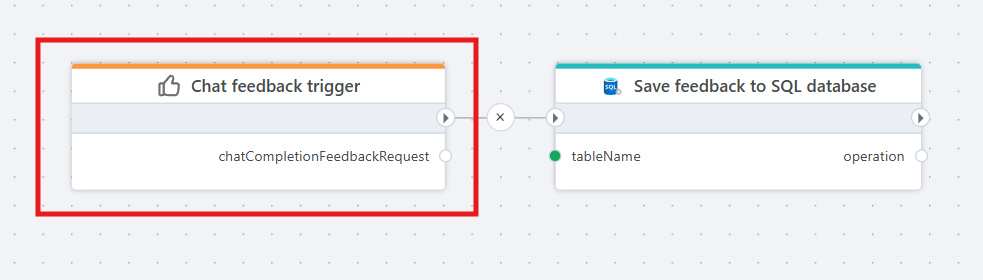
Example The example above shows a Flow that receives a feedback and stores this to a database table.
Properties
| Name | Required | Description |
|---|---|---|
| Title | No | A descriptive label for the trigger. |
| Test data | No | A JSON string that can be in dev mode to test the Flow before it's called from the outside (for example InVision). The JSON must have format as described in Test data below. |
| Output variable name | Yes | The name of the variable containing the ChatCompletionFeedbackRequest object. (See Returns below) |
Test data
The Test data property must have the following format:
{
   "sessionId": "some id",
   "question": "the user prompt",
   "completionText": "the completion response",
   "feedback": "any feedback 'string' that you want to send to this trigger"
}
Returns
The trigger outputs a ChatCompletionFeedbackRequest object with the following properties.
| Property name | Type | Description |
|---|---|---|
| SessionId | String | The id of the chat session provided by the client. |
| Question | String | The question asked by the user. |
| CompletionText | String | The completion text (reponse) that the feedback concerns. |
| Feedback | String | This can be any string value. The Invision AI Chat component sends one of the values 'up', 'down' or 'none'* |
* The none value of the Feedback property indicates that previously submitted feedback has been revoked.
Description
Invision currently provides a component that allows users to interact with an LLM through a chat interface. When a response is generated, the component presents the user with options to:
- copy the response
- give the response a thumbs-up rating
- give the response a thumbs-down rating
- revoke a previously selected thumbs-up or thumbs-down rating
The Chat Feedback trigger acts as the entry point for a Flow-based backend that handles the feedback data generated by this functionality, allowing users to customize how feedback is processed.
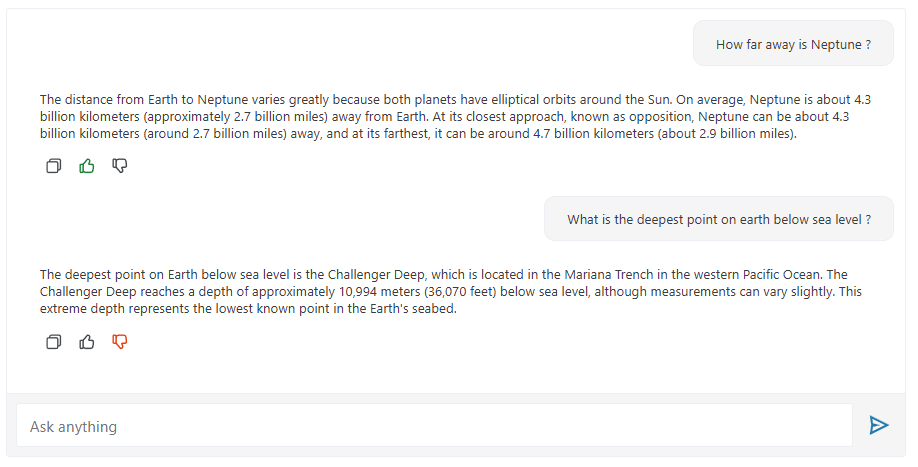
Example The example above shows the Invision AI Chat component displaying two responses, each showing which feedback option was selected for that response.