MCP Server Settings
To let MCP clients use OAuth to access Flow MCP Server APIs and Semantic models, you must configure the MCP Server Settings for the Workspace.
For example, if you use the OAuth endpoint of an MCP tool trigger without configuring the MCP Server Settings, the API returns an unauthorized error.
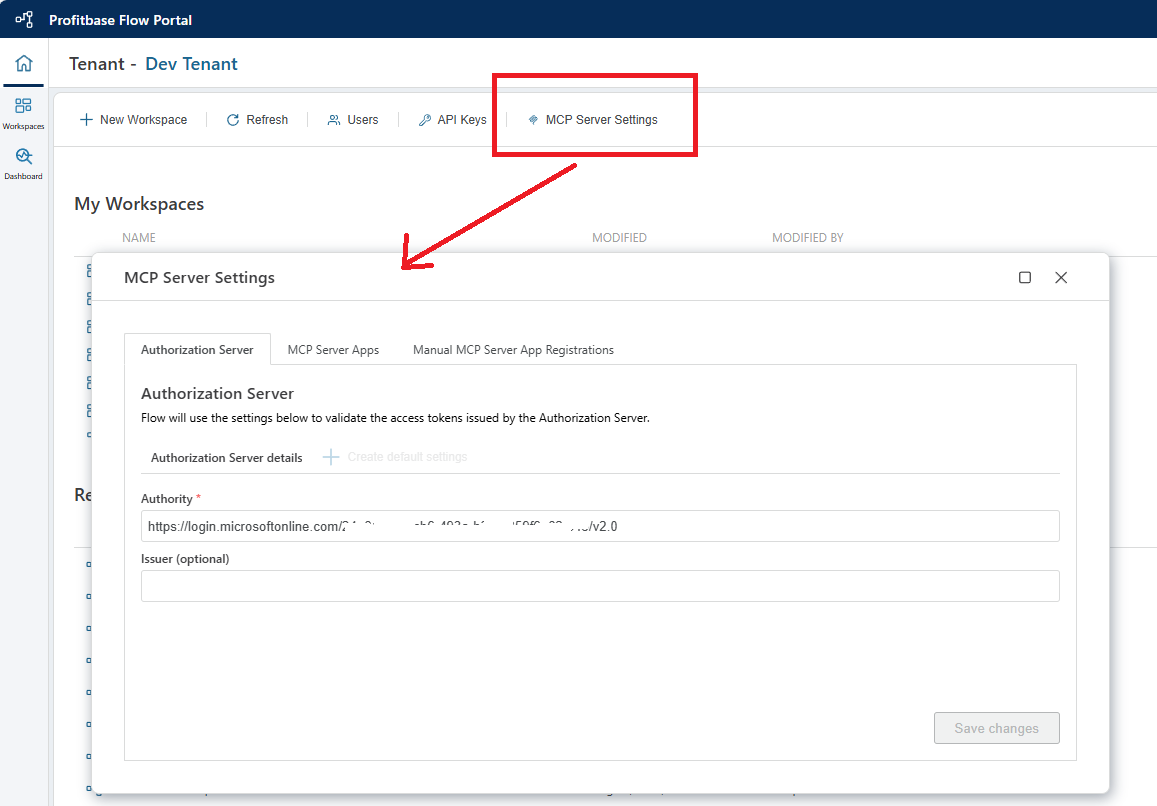
Get started: use the default Authorization Server
The quickest way to enable OAuth for Flow MCP Server APIs is to use the Authorization Server associated with your Flow instance.
- In the MCP Server Settings window, select the Authorization Server tab.
- Click Create default settings. This enables OAuth authorization for your tenant. The Authority property now contains a value like
https://login.microsoftonline.com/GUID/v2.0. - Optional: to use your own Entra ID tenant, replace the GUID in the Authority URI with your Entra tenant ID.
Pre-registered MCP Server Apps
Authorization servers such as Entra ID, Auth0, Keycloak and Okta each implement the MCP authorization protocol differently, so how you configure an MCP Server App in Flow may vary slightly depending on which one you use. This article focuses on Microsoft Entra ID, as it is the most common choice for enterprises.
To support the MCP protocol, an MCP server like Flow must provide an authorization server, and optionally scopes, to MCP clients such as Claude and Copilot. The clients use these to authenticate users against the authorization server and call the MCP server on the user's behalf. Entra ID requires scopes; other authorization servers may not.
For details on how this works in Entra ID, see Microsoft's documentation.
Properties
| Name | Description |
|---|---|
| Application name | The display name of the MCP Server App. Used only as a label. |
| Client ID | The Client ID as registered in the authorization server, usually a GUID. Required when using Entra ID. |
| Scope | Required when using Entra ID. The scope must match the Application ID URI or one of the identifierUris in the App Registration manifest. |
| Use for Flows with an MCP Tool Trigger | If you have more than one MCP Server App, select which app provides authorization for Flows with an MCP tool trigger. |
| Semantic models | If your Workspace contains a Semantic model, specify which MCP Server App provides authorization for its MCP endpoint. Add an item to the list and select the semantic model from the dropdown. |
Set up an Entra ID App Registration for a Flow MCP Server App
These steps follow Microsoft's official guide and add the Flow-specific configuration.
Step 1: Create the App Registration
- Sign in to the Azure Portal.
- Go to Entra ID -> App registrations -> New registration.
- Enter a name and click Register.
Step 2: Set the access token version to v2
The app registration must issue v2 access tokens. To make sure it does, set requestedAccessTokenVersion to 2 in the manifest.
- In your app registration, select Manifest.
- In the
apiobject, setrequestedAccessTokenVersionto2:
"api": {
    "requestedAccessTokenVersion": 2
}
- Click Save.
Step 3: Set the Application ID URI to the Flow MCP service
Set the Application ID URI to the exact canonical URL of your MCP service endpoint in Flow.
- In your app registration, select Expose an API.
- Next to Application ID URI, click Add (or Edit), and enter the MCP service URL.
- For a Semantic model MCP service, use its Connect with OAuth URL.
- For an MCP service provided by a Flow with an MCP tool trigger, use its Connect with OAuth URL.
- If your Workspace has multiple MCP endpoints (for example, several semantic models, or both semantic models and Flows with MCP tool triggers), select Manifest and edit
identifierUristo include all the endpoints:
"identifierUris": [
  "https://app2.profitbase.biz/mcp/tenants/[tenant-id]/workspaces/[workspace-id]/semantic-models/[semantic-model-id]",
  "https://app2.profitbase.biz/mcp/tenants/[tenant-id]/workspaces/[workspace-id]/environments/[environment]"
]
Step 4: Define scopes
- In the Entra App Registration, select Expose an API.
- Click Add a scope.
- Enter a scope name that reflects the server operation, for example
mcp.tools. - Choose who can consent (Admins only or Admins and users), enter the consent display names and descriptions, set the state to Enabled, and click Add scope.
Step 5: Add or update the Flow MCP Server App
- Go to MCP Server Settings in your Flow Workspace.
- Select the Authorization Server tab.
- If you haven't already, click Create default settings. This enables OAuth authorization for your tenant. The Authority property now contains a value like
https://login.microsoftonline.com/GUID/v2.0. - Go to the Pre-registered MCP Server Apps tab and click Add application (or select an existing one).
- Enter an Application name. This is only a label, so choose any name that makes sense to you.
- In Client ID, enter the Application (client) ID of the Entra App Registration you just created. You can find it on the Overview page of the app registration.
- In Scope, enter the full scope, including the URL, that you defined in Step 4. To copy it, click Copy to clipboard next to the scope name in the Entra App Registration (Expose an API -> Scopes). It looks like
https://app.profitbase.biz/[url]/mcp.tools; the scope name is the last part of the URL. - If you're enabling a Semantic model MCP service, add the model to the Semantic models list in the MCP Server App.