Edit
Overview
This page allows you to edit model-specific properties such as description, access and so on.
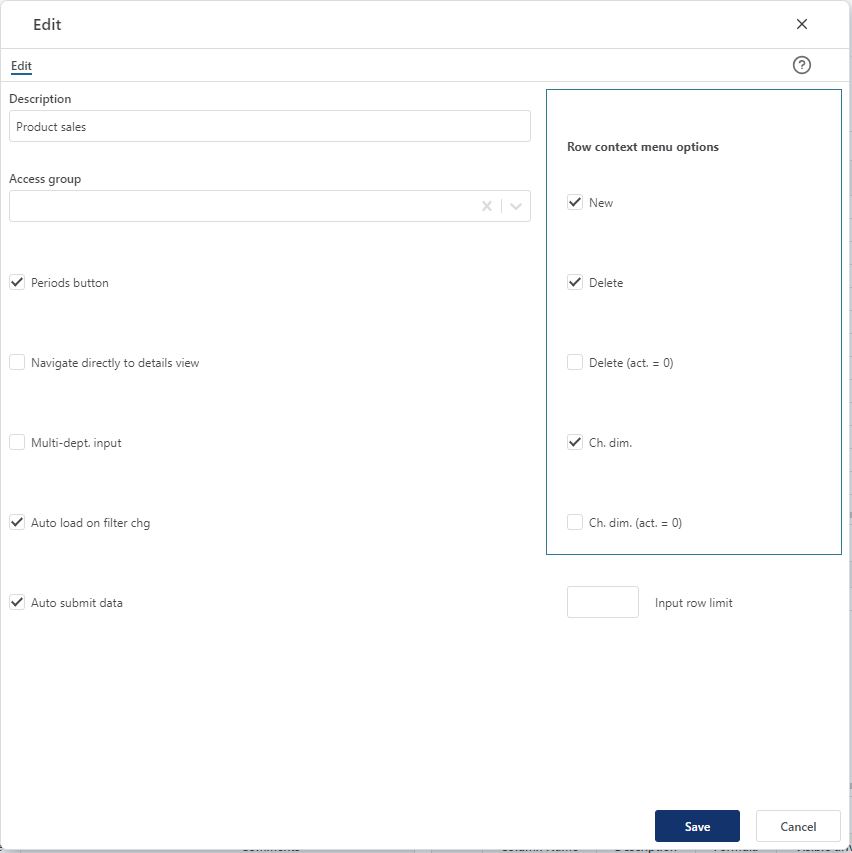
The following properties can be controlled:
Description: The desfault description of the model. For language specific translations, see Input Administration and Settings -> Translations.
Access group (select from drop down list): It is possible to limit the access to a model to a specific access group. The access group is set up in the User Management -> Group Management and must be of category Default to appear in drop down list.
Periods button (check | uncheck): by default the Periods button appear in the input workbook for the model. If year-total only input is desired, the Periods button can be hidden by unchecking this option.
Navigate directly to details view (check | uncheck): By default a driver-view is displayed in the input workbook as the workbook is started and/or a new department is selected. To see the details view (complete model), a click on a driver-row has to be made. The details view can be directly navigateable if this option is clicked and all dimensional id's other than departmentid has a default value of # (the standard default). This can be of use for models that are singular to the various departments.
Multi-dept. input (check | uncheck): Input only allowed at lowest department level input is the default (false). If set to true, input can (given that access control allows) be given at higher-level nodes of the department dimension.
NOTE: when multi-department input is no (true), other filter should be used to narrow down the data set operated on.
Auto load on filter chg (check | uncheck): By default, data is loaded automatically on filter change (true). When multi-department input is used, it may be desirable to first set all filters and then load the data. If this is the case, set this option to false. End user will have to use the Refresh button to load data.
Auto submit data (check | uncheck): By default, the save button will both save and submit (process) the data. It may be desirable to split the two. If checked, a Submit button will appear and must be clicked once the editing is saved and a submit is desired.
Input row limit: Max. row limit returned that allows input. If row limit is reached, data is limited, and a warning is given to say that data set must be narrowed down to allow input. When multi-department input is set to true, a row limit must be set.
Row context menu controls:
New (check | uncheck): Insert new row and Insert copy of row is allowed (true) or not allowed (false). Default is true.
Delete (check | uncheck): Delete row is allowed (true) or not allowed (false). Default is true.
Delete (act. = 0) (check | uncheck): Delete row is allowed only if row contains no actuals (true). Available for selection only if “Delete” is true.
Ch. dim. (check | uncheck): Change dimensionality is allowed (true) or not allowed (false). Default is true.
Ch. dim. (act. = 0) (check | uncheck): Change dimensionality is allowed only if row contains no actuals (true). Available for selection only if “Ch. dim.” is true.