For each email in shared mailbox
Iterates over a list of emails in a shared mailbox in Microsoft 365 Outlook. Use this action to fetch emails from a shared mailbox in Outlook and process them one by one.
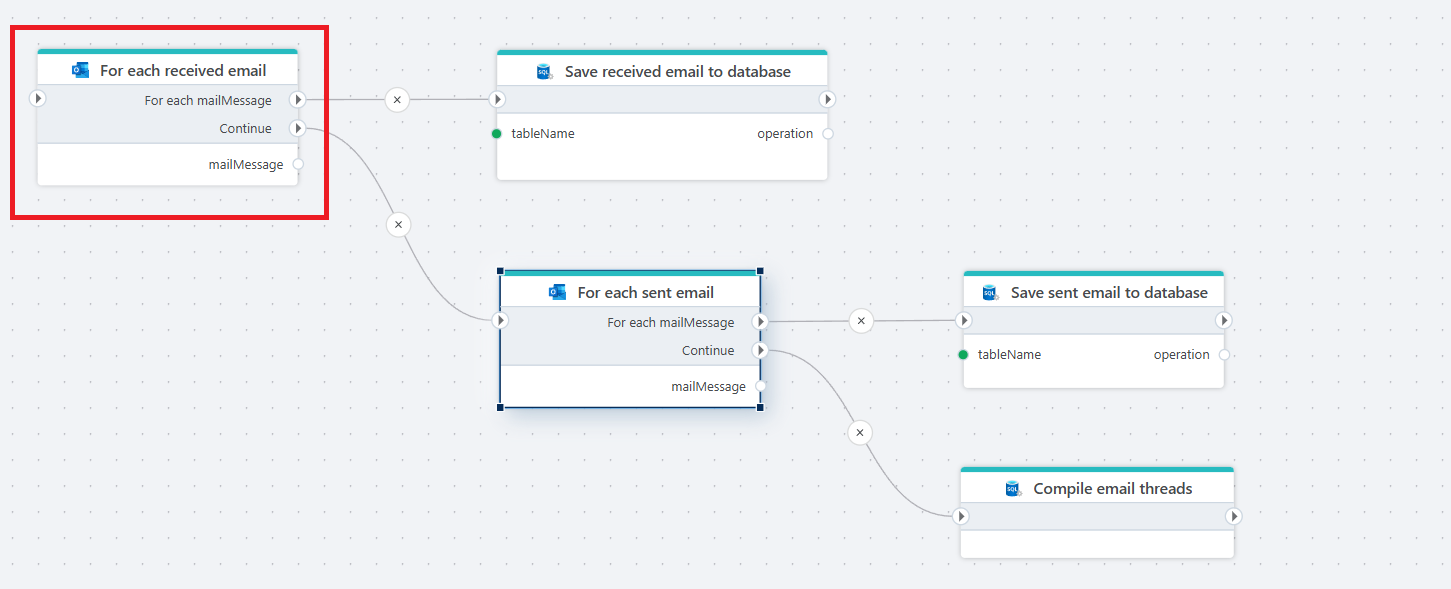
Figure: Fetching received and sent emails and saving them to a database and then compiling mail threads based on conversation ids.
Properties
| Property | Required | Description |
|---|---|---|
| Connection | Yes | Specifies the Microsoft 365 Outlook connection that the trigger should use to check for new emails. |
| Shared Email account | Yes | Specifies the email account to fetch emails from, for example support@corp.com |
| Disabled | No | Specifies if the action should be disabled. |
| Filter | No | Specifies optional filters to restrict which emails to fetch. See detailed description below. |
| Folder | No | Specifies the folder to fetch emails from. |
| Include attachments | No | Specifies whether or not to fetch the contents of all attachments when the action runs. Read more about this option below. |
| Output name | Yes | The name of the output variable that represents the retrieved mail message. You can change it from the default mailMessage to something that more clearly describes the received mail, for example customerFeedbackMessage. |
Returns
Each email message contains the following properties:
MailMessage properties
| Name | Description |
|---|---|
| MessageId | The unique id of the mail message in Outlook. |
| InternetMessageId | The message ID in the format specified by RFC2822 |
| ConversationId | The ID of the conversation the email belongs to. |
| EmailAccount | The email account the message belongs to. |
| Body | The email body. This can be HTML or plain text. |
| Subject | The subject of the email. |
| From | The email sender. |
| To | The email recipient. |
| Attachements | Metadata about the email attachments. Note that this does not contain the actual attachment contents unless the Include attachments property is enabled. You can use the Get attachment action to retrieve the attachment contents on demand. |
| IsRead | Specifies whether the email has been read. |
| ReceivedDateTimeUTC | The UTC date and time the message was received. |
| SentDateTimeUTC | The UTC date and time the message was sent. |
Filter
Use filters to restrict which mail messages are returned.
| Filter | Description |
|---|---|
| From | Specify one or more email addresses to accept messages from. To filter on multiple addresses, use semicolon as separator, for example luke.skywalker@rebellion.com;leia@rebellion.com. You can also specify partial addresses such as @outlook.com to only accept emails sent from an Outlook.com account |
| Subject | A text contained in the subject to receive. For example, using budget version as subject filter will accept messages with the subject Final budget version 2024, while messages with subject Final version 2024 will not be accepted. |
| Importance | Specifies the importance of the messages to accept. If no importance is selected (checked), all messages are accepted. |
| Only with attachments | Whether or not to only accept messages with attachments. |
| Custom filter | Lets the user specify a custom filter, for example startswith(subject, 'Hello') and isRead eq true. Read more about filters here. Note! You should not include filter= in the expression. |
| Search | Allows you to further restrict which messages are returned. Read more about using search here. |
Example - filter by received date
This example shows how to use a custom filter to fetch only emails received on or after midnight February 1st 2026.
receivedDateTime ge 2026-02-01T00:00:00Z
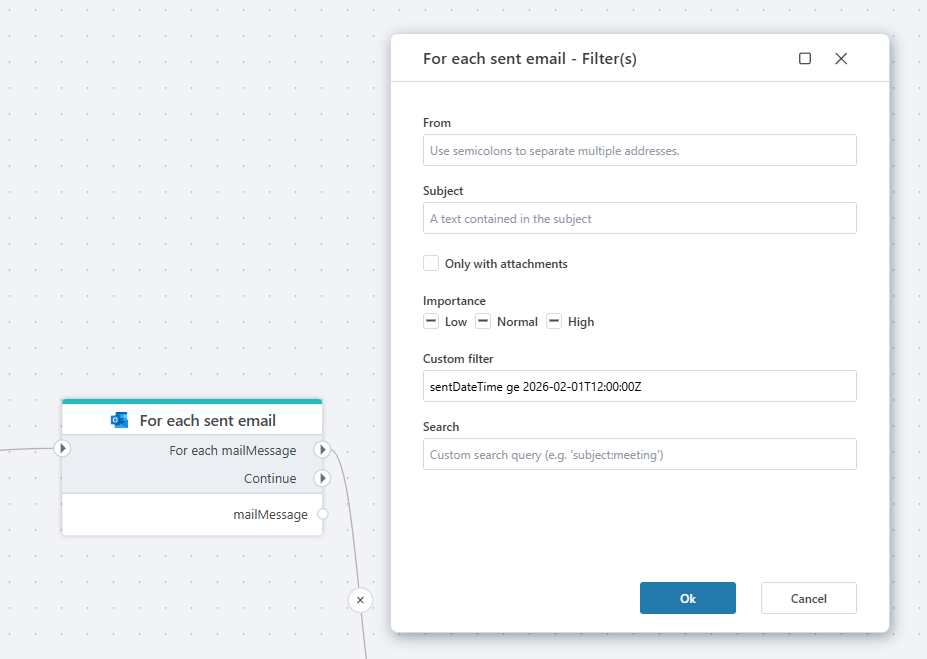
Example - filter by sent date This example shows how to use a custom filter to fetch only emails sent on or after 12 AM February 1st 2026.
sentDateTime ge 2026-02-01T12:00:00Z
Attachments
If Include attachments is set to false (unchecked), only metadata about any attachments in the message is included when the trigger runs.
If this is the case, you need to use an additional action such as Get attachment or For each attachment, to get the actual file contents of the attachments.
If emails contains large attachments, and you don't need all of them when processing the messages, it is recommended to set the Include attachments to false, and instead selectively get attachments you need using the Get attachment action.