Send Email
Use this action to send emails through your configured SendGrid connection in Hypergene Flow.
Example Flow
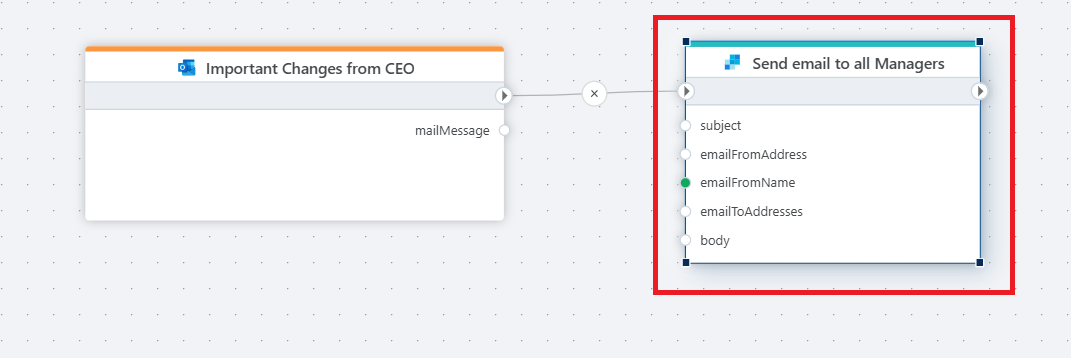
Example 
This flow retrieves files or content from a source system and sends an automated email using SendGrid.
For example, you could trigger a flow when a form is submitted, build a PDF, and email it to the recipient with custom messaging and attachments.
Getting Started with SendGrid
To use this action, you need a configured SendGrid connection with a valid API key and at least one approved sender.
Refer to the official documentation for additional setup and best practices:
Action Properties
| Property | Required | Description |
|---|---|---|
| Title | No | A custom label for the action in the Flow UI. |
| Connection | Yes | Choose or create a SendGrid connection with a valid API key. |
| From email | Yes | The sender's email address. Must match one of the verified senders in the connection. |
| From name | Yes | The display name for the sender (e.g., "Finance Department"). |
| To | Yes | One or more recipient email addresses, separated by semicolons. |
| Subject | Yes | The subject line of the email. |
| Message | Yes | The main message body. Can include dynamic content or expressions. |
| Attachments | No | Upload or select files to include as attachments. |
| Description | No | Internal documentation or notes for Flow designers. Not included in the email. |
Notes
- The email will be sent on behalf of the selected sender.
- Make sure your API key has sufficient permissions (Mail Send) in SendGrid.
- The message supports plain text and basic HTML formatting.