Example - Send a message with an attachment
As described above, in Teams an attachment is a reference to a document, not the document content itself. To send a Teams message with an attachment, the document must already exist in OneDrive or SharePoint. This example shows the required steps to send a Teams message with an attachment, as illustrated in the image below.
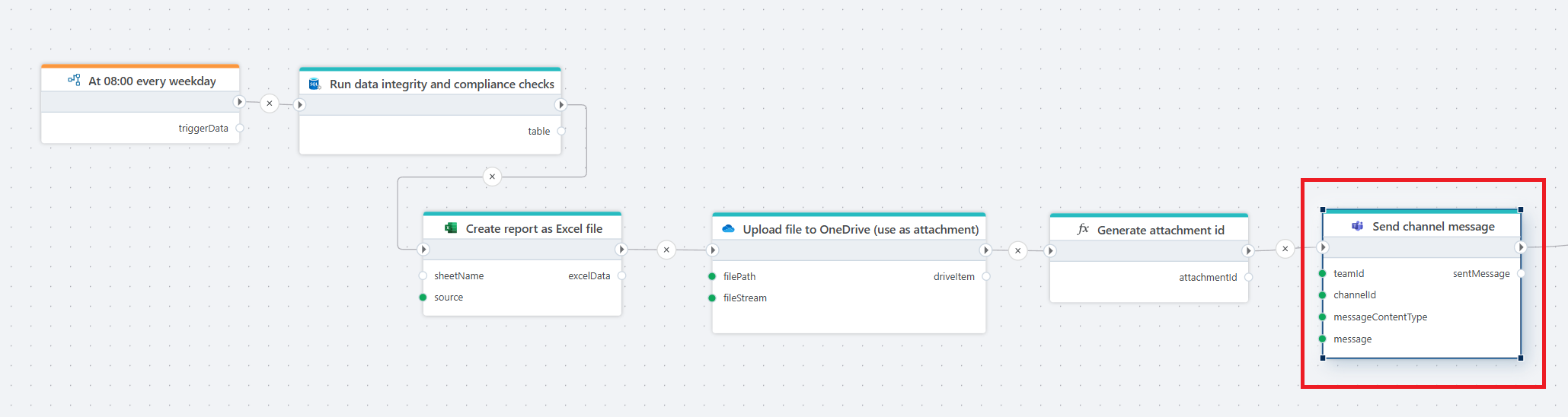
Our goal is to generate an Excel file with a list of TODOs, and post it to a channel together with a message. To post the file as an attachment with the message, the file must exist in OneDrive or SharePoint (this is simply how MS Teams attachments work). The first thing we do is therefore to generate and upload the file. We use the Upload file to OneDrive action to upload it, which returns the information about the OneDrive item needed to create the Teams attachment.
The Generate attachment ID is a Function that simply returns a GUID as a string. We'll use the attachment ID in both the message body and the list of attachments.
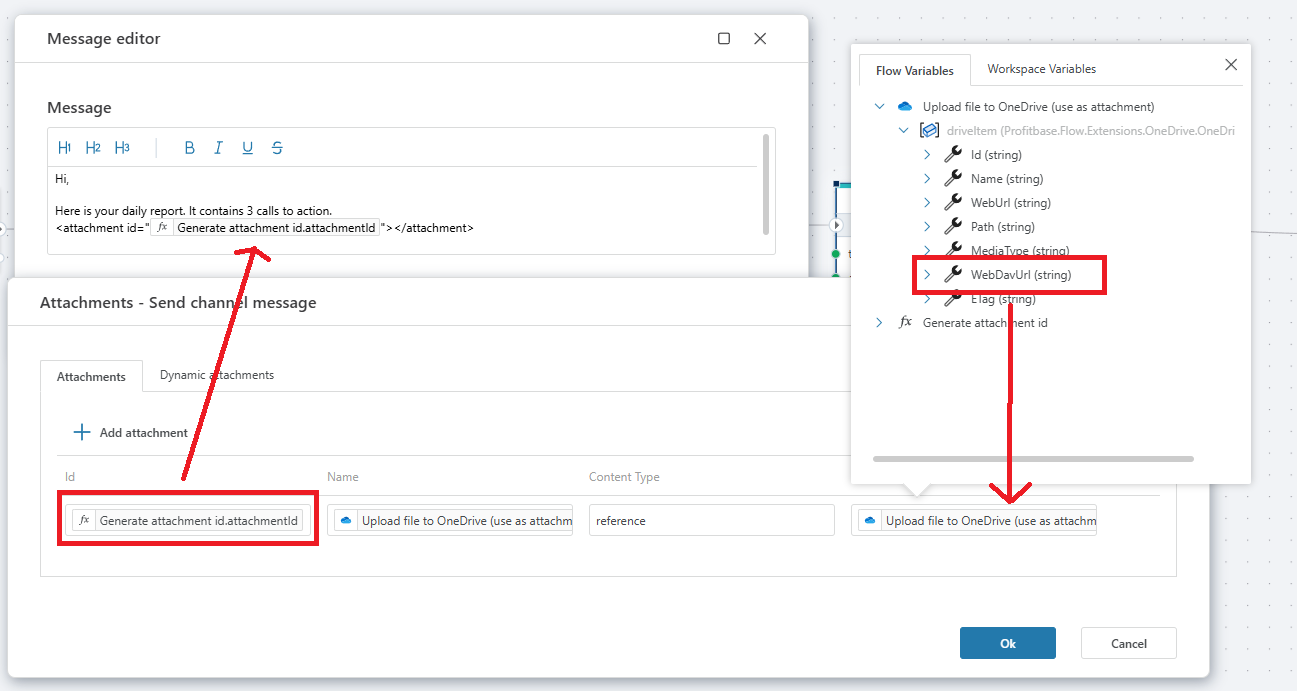
To define the attachment, open the Attachments property of the action and apply the following mappings:
| Attachment property | Map from |
|---|---|
| Id | The GUID generated by the Function action. |
| Name | The OneDrive item Name property. |
| Content type | The string "reference" (without quotes). |
| Content URL | The OneDrive item WebDavUrl (Or WebUrl) property. |
Then, in the Message, you must reference the attachment using the <attachment> tag. This is required by Microsoft Teams for including attachments in messages.
Your message...
<attachment id="the-guid"></attachment>