Writeback Comments trigger
The trigger defines the starting point of a Flow that stores comments from the Writeback Comments Power BI visual.
To create a Flow that saves comments from the Writeback Comments visual, add this trigger. It starts the Flow when the user presses the Save button in the Writeback Comments visual, and outputs a DeltaSet containing the change made by the user. You then need to add an action for the specific target system that you want to save the comments to, for example SQL Server / Azure SQL, PostgreSQL or Snowflake.
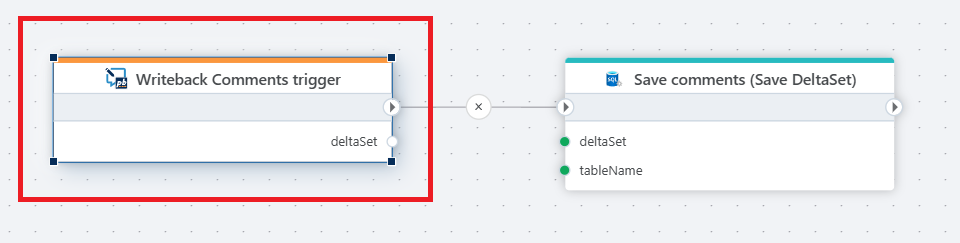
Example
This flow is triggered when users add or update comments in a Power BI Writeback Comments visual. The trigger captures the delta set of new or changed comments, and the Flow then saves this data into the designated database table by automatically applying updates or inserts based on what data is already stored in the target table. This ensures that user feedback or annotations from Power BI reports are stored centrally for later retrieval, reporting, or analysis.
Properties
| Name | Type | Description |
|---|---|---|
| Test data | No | Use this property to define test data to save to a database, file or service. The test data is only used when you run the Flow manually from the Designer during development. The test data is NOT used when data is saved from the Power BI user interface. See below for a description of the required format. |
Returns
The trigger returns a DeltaSet containing the comments to save to a database, file, or service.
The DeltaSet can be passed to an action that saves the changes to a database, file or service.
The following actions currently supports saving DeltaSet changes:
- SQL Server / Azure SQL: Save DeltaSet to SQL Server
- Snowflake: Save DeltaSet to Snowflake
Test data format
This describes the format you can use to test saving changes from the Writeback Table before you have added it to a page in Power BI.
To manually run a Flow for testing purposes, press the Run button in the Flow Designer application toolbar.
{
    "column": "columnName",
    "value": "columnValue",
    "context": {"keyColumn1": "keyValue1", "keyColumn2": "keyValue2"},
    "userId": "The OID (GUID) of the user, or the UPN (user@corp.com) depending on how the visual is configured",
    "timeZone": "The IANA time zone name (e.g. 'Europe/Oslo)"
}
Example - Test data
The example below shows a test data JSON object that describes changes to January and February amounts of how much a sales representative is expected to sell for a specific product.
{
    "column": "Comments",
    "value": "This is my comment.",
    "context": {"ProductId": "100", "SalesRepId": "56-08-12"},
    "userId": "me@corp.com",
    "timeZone": "Europe/Oslo"
}
How does it work
When you configure the Comments visual in Power BI, you specify one or more Key column(s) and a single Comments column. The Comments column is the name of the column where comments should be stored. The Key column(s) identity the row.
When changes are sent to the server (Flow), it is sent as a collection of cell updates on the format:
{
    "column": "columnName",
    "value": "columnValue",
    "context": {"keyColumn1": "keyValue1", "keyColumn2": "keyValue2"},
    "userId": "The OID (GUID) of the user, or the UPN (user@corp.com) depending on how the visual is configured",
    "timeZone": "The IANA time zone name (e.g. 'Europe/Oslo)"
}
The context consists of the Key columns, column is the name of the column to update, and value is the new value of the cell.
This format will be converted to a DeltaSet as the output from the trigger. Actins like Save DeltaSet to SQL Server or Save DeltaSet to Snowflake will then translate the DeltaSet into database commands to apply the actual changes.
For those of you familiar with SQL, this logically translates to
UPDATE [Table]
SET columnName=@columnValue
WHERE keyColumn1 = keyValue1 AND keyColumn2 = keyValue2