Set up Workbook as the startpage
You can configure a default start page Workbook for a user. When you do, the user is taken directly to that Workbook instead of the Homepage when navigating to the home address.
There are two ways of doing this:
Specify a Workbook as the start page for all users
If you want a specific Workbook to the the startpage of all users, open the Workbook in the Workbook designer and enable "Use as Startpage" in the toolbar.

Note
Defining Workbook as startpage based on Access Group membership (see below) will override the "Use as Startpage" setting.
Specify a startpage based on Access Group membership
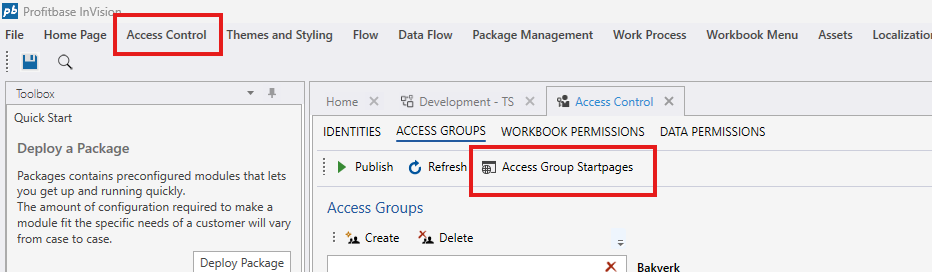
To configure the startpage based on a user’s Access Group (admin, contributor, etc.), go to Access Control → Edit → Access Groups in the InVision Designer. Then open the Access Groups Startpages window and specify which Workbook should be used as the start page for each Access Group.
Startpage and Work Process Versions
If the Workbook selected as the Startpage belongs to a versioned or Version blueprint Solution, the Startpage will automatically switch to the corresponding Workbook of the last deployed Work Process version.
Startpage best practices
If a user is member of multiple Access Groups, each assigned to different startpages, the system will simply pick the first. This typically happens for admins, power users and other types of users with elevated permissions being members of multiple Access Groups. Instead, it is recommended to create separate Access Groups for access control and startpage assignment.
Videos
How to set up a Workbook as the startpage