Fortnox REST API Request
The REST API Request action allows you to interact with the Fortnox REST API to read or write data. You can retrieve information such as customers, accounts, or employees, or update records in Fortnox using HTTP methods (GET, POST, PUT, DELETE, etc.).
Example 
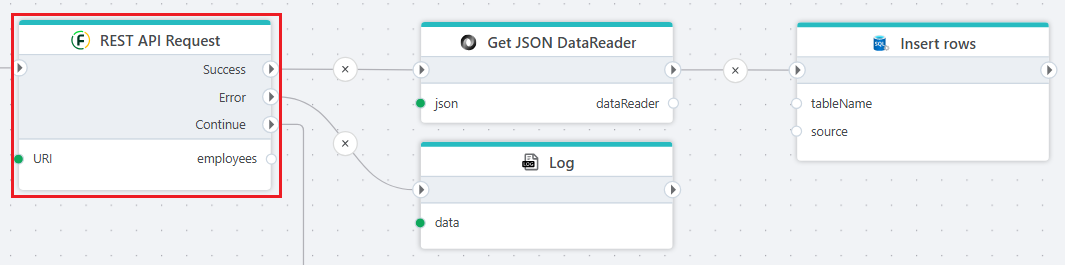
The example above shows how to read employees from Fortnox and insert the result into an SQL Server table. The result from the REST API Request is converted using the JSON to DataReader action, and then inserted using the SQL Server Insert action.
Properties
| Name | Required | Description |
|---|---|---|
| Title | No | The title or name of the request. |
| Connection | Yes | The Fortnox Connection used to make an authenticated request to the Fortnox REST API. |
| Dynamic connection | No | Use this option if you need to use a connection created by the Create Connection action. |
| Configuration | Yes | Define configuration as described below. |
| Description | No | Additional notes or comments about the action or configuration. |
Returns
To maximize compatibility and performance, we recommend using the HttpResponse<T> type. This provides:
- The raw response body.
- Additional details such as the HTTP status code and any errors.
For further processing, store the raw JSON response in a database or file storage, and use data transformation tools to convert it into the required format.
Configuration
Defining a REST API Request
To define a request to the Fortnox REST API, you can start from a template, or define it manually.
If you press the New Request button in the Configuration dialog, you can choose from a set of predefined request templates.
The Fortnox REST API is large, so the template collection contains only a subset of the available APIs. If you cannot find a template for the request you want to make, you can refer to the Fortnox API documentation and define the request manually.
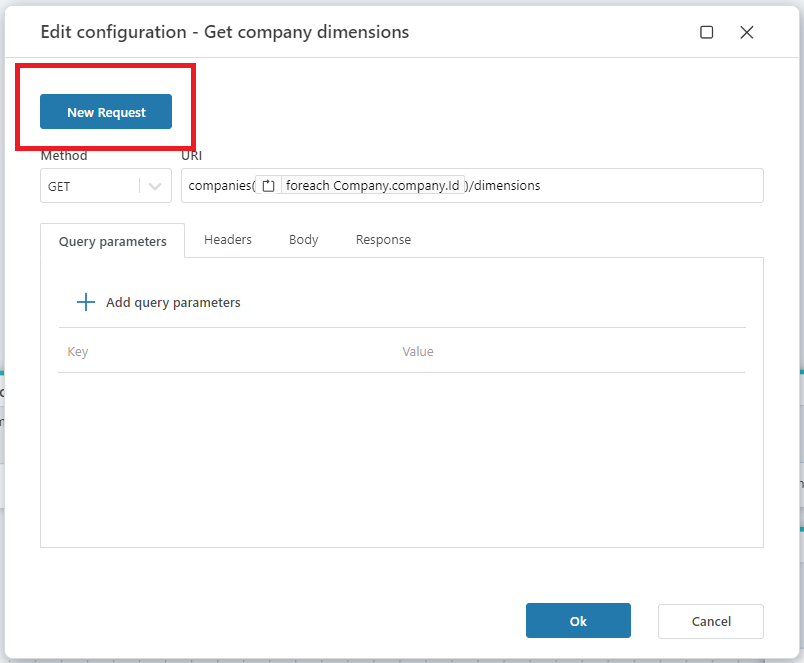
Method: Choose the appropriate HTTP method for your request:
GET: Retrieve data from Fortnox (e.g., get accounts or financial years).POST: Create new records (e.g., add a new invoice or customer).PUT: Update existing records (e.g., modify accounting settings).DELETE: Remove records (e.g., delete a customer or invoice).
URI: Specify the endpoint for your request. For example:
customers: To manage customer records.invoices: To work with invoices.
Headers:
- Authentication is automatically set up from the connection settings.
Parameters: Add query or body parameters as required by the endpoint. Use variables or fixed values based on your workflow to customize the request and ensure it retrieves or updates the desired data.
Response Type: Use the default
HttpResponse<string>to work with raw JSON data. For large datasets, this approach is recommended to reduce memory usage and improve performance.
Error handling
If the response from the Fortnox request is of type HttpResponse<T>, the response object includes an IsSuccess property. If IsSuccess is false, the response object will contain an ErrorContent property, which relays error messages from the API call or internally thrown exceptions.
For other response types or severe errors, the action will raise an error that could terminate the Flow unless the On Error port is connected or the action is wrapped in a Try-Catch block.
The On Error handler is triggered for each page error, allowing you to manage errors individually and prevent the Flow from automatically raising an error that might terminate the running process.
API Limits
Fortnox enforces rate limits to maintain stable server performance. If you exceed these limits, the API will return a 429 Too Many Requests error.
The action handles this by delaying calls and retrying requests. If the retry limit is reached, an error is returned.
By following these guidelines, you can integrate with the Fortnox API efficiently and avoid common pitfalls.