Execute command
Executes a SQL command against a SQL Server database and returns the number of rows affected. Use this for INSERT, UPDATE, DELETE, MERGE, stored procedure calls, or any other statement that does not return a result set.
Note
This action returns the row count, not query results. To retrieve data, use Get DataReader or Get Single Value.
When to use this
- To run
UPDATEorDELETEstatements that cannot be expressed with the dedicated Merge Tables or Delete Table actions. - To call stored procedures that perform data modifications.
- To run DDL statements (
ALTER TABLE,CREATE INDEX, etc.) not covered by other SQL Server actions. - To execute a custom
MERGEstatement when the Merge Tables configuration editor is too limited.
How it works
- Input: A SQL command (with optional parameters) and a SQL Server connection.
- Processing: Executes the command against the connected database. Supports parameterized queries and Flow variable interpolation in the command text (see How to use parameters and How to use Flow variables below).
- Output: Returns the number of rows affected as an
Int32. If Result variable name is set, the count is also stored in the specified Flow variable for use by downstream actions.
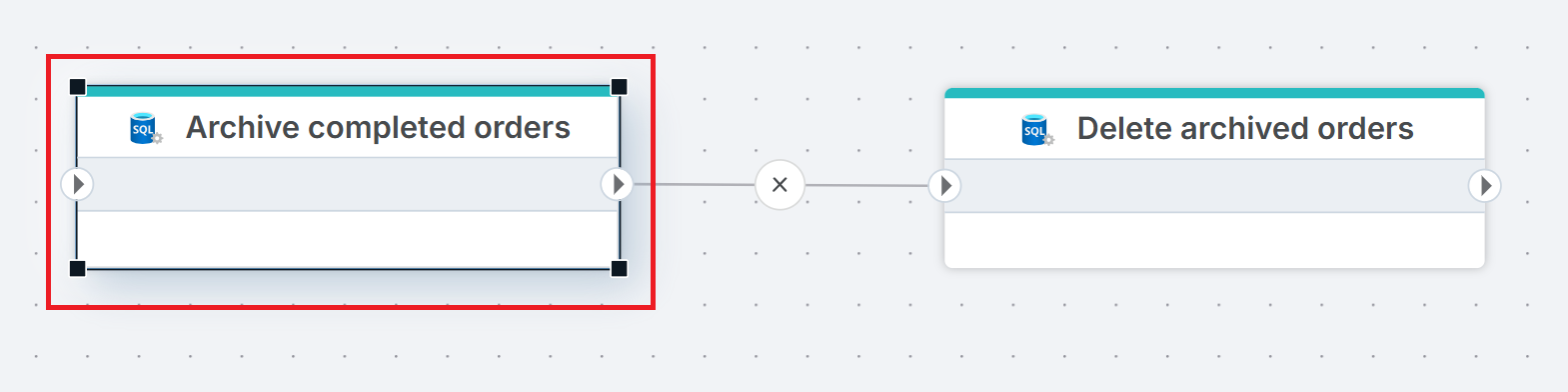
Example 
This flow archives and then removes completed orders. Archive completed orders copies rows matching Status = 'Completed' from Orders to Orders_Archive using an INSERT INTO ... SELECT statement. Delete archived orders then removes the same rows from Orders with a DELETE statement. Use Execute Command when you need SQL statements that go beyond what the dedicated actions (Merge Tables, Delete Table) support.
Properties
| Name | Required | Description |
|---|---|---|
| Title | No | A descriptive title for the action. |
| Connection | Yes | The SQL Server Connection to the target database. |
| Enable dynamic connection | No | When enabled, uses a connection created at runtime by Create Connection. Use this when the target database varies between runs. |
| SQL expression and parameters | Yes | The SQL command to execute, with optional parameters. Supports parameterized queries and Flow variable interpolation. See How to use parameters and How to use Flow variables below. |
| Result variable name | No | The name of a Flow variable that receives the number of rows affected. Use this to pass the count to downstream actions or conditions. |
| Command timeout (seconds) | No | Maximum execution time in seconds. The action fails with a timeout error if exceeded. Default is 120 seconds. |
| Disabled | No | When checked, the action is skipped during Flow execution. |
| Description | No | Additional notes or comments about the action or configuration. |
Returns
Int32. The number of rows affected by the command. For statements that do not affect rows (e.g. DDL), returns 0 or -1 depending on the statement type.
How to use parameters
Click the edit icon next to SQL expression and parameters to open the SQL expression editor. The editor has four tabs:
| Tab | Description |
|---|---|
| Expression | The SQL command to execute. Write or paste your query here. |
| Parameters | Declare SQL parameters (@Name, @UserId) and assign values or map them to Flow variables. |
| Dynamic parameters | Map parameters dynamically from upstream action outputs. |
| Test Parameters | Provide test values to run the query in the editor with Execute query without affecting production data. |
The Object Explorer on the right lists available database objects (Tables, Views, Synonyms, Stored Procedures, Functions) on the current connection.
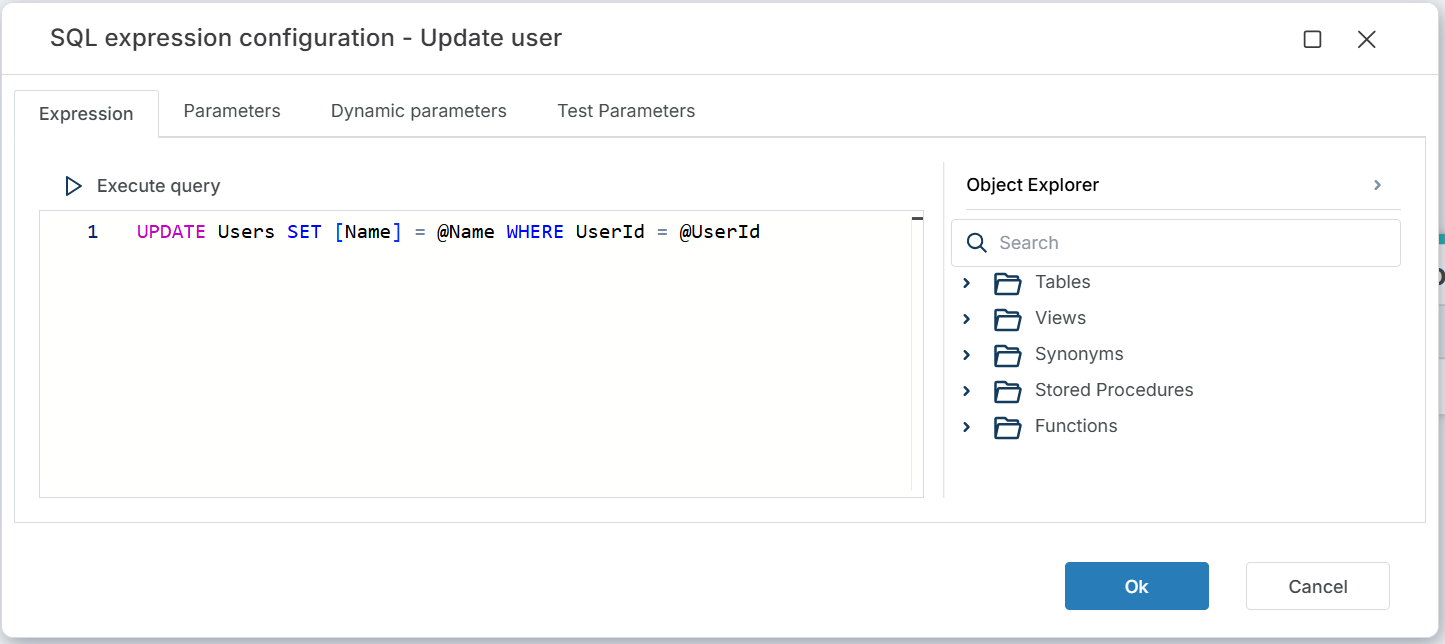
Declare parameters in the Parameters tab and reference them in the query with the @ prefix.
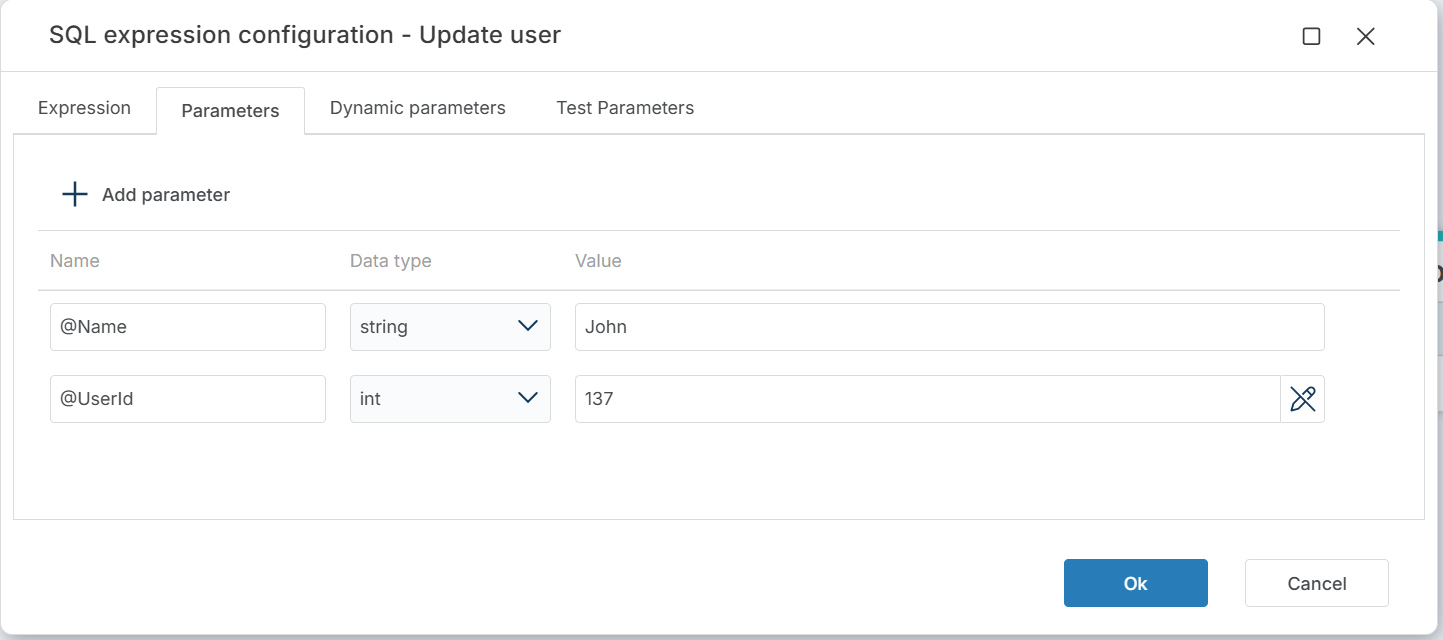
Each parameter has three fields:
| Field | Description |
|---|---|
| Name | The parameter name, including the @ prefix (e.g. @Name, @UserId). Must match the parameter used in the SQL expression. |
| Data type | The parameter's data type (e.g. string, int, decimal). |
| Value | The parameter value. Enter a static value or click the field to pick from available Flow Variables or Workspace Variables. |
UPDATE Users SET [Name] = @Name WHERE UserId = @UserId
How to use Flow variables in the command expression
To use Flow variables in the SQL command, first declare a variable as Global and assign a value in a preceding action. Then enclose the variable name in curly brackets in the command text.
-- TableName is a Flow variable declared and assigned in a previous action.
UPDATE {TableName} SET [Name] = @Name WHERE UserId = @UserId
Important
Flow variables in curly brackets are interpolated into the command text before execution. Use SQL parameters (@Name) for user-supplied values to prevent SQL injection. Use Flow variables ({TableName}) only for identifiers like table or column names that cannot be parameterized.
Code examples
INSERT with SELECT
INSERT INTO Orders_Archive (OrderId, CustomerId, Amount, OrderDate)
SELECT OrderId, CustomerId, Amount, OrderDate
FROM Orders
WHERE Status = 'Completed'
Conditional DELETE
DELETE FROM Invoices WHERE DueDate < DATEADD(YEAR, -7, GETDATE())
Calling a stored procedure
EXEC dbo.RecalculateBalances @AccountId = @AccountId, @Period = @Period
DDL statement
CREATE INDEX IX_Orders_CustomerId ON Orders (CustomerId)
Using Result variable name
Set Result variable name to rowsAffected. Downstream actions can reference this variable — for example, a conditional branch that checks whether any rows were modified:
rowsAffected > 0
See also
- Get DataReader — executes a query and returns a result set as a DataReader.
- Get Single Value — executes a query and returns a single scalar value.
- For Each Row from Query — executes a query and iterates over each row.
- Merge Tables — merges source rows into a target table without custom SQL.
- Connection — how to set up a SQL Server connection.
SQL Server: Videos / Getting started
This section contains videos to help you get started quickly working with Azure SQL / SQL Server using Flow.
Dump CSV file from Azure Blob container to Azure SQL table
This video demonstrates how to import all records from a CSV file into an Azure SQL table.
In the demo, no data import options (such as data type conversion, number or date formatting) are specified, meaning the data is imported as raw text.