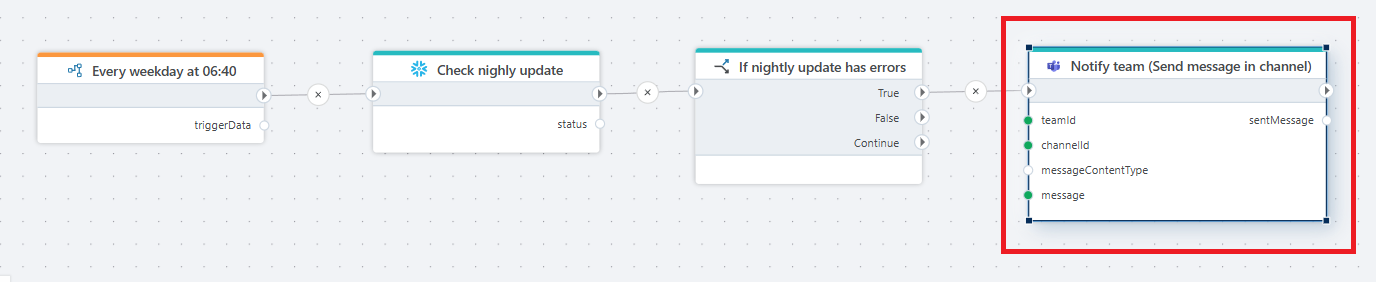
Send message in channel
Sends a message in a Microsoft Teams channel.
Use this action to send a message to a Microsoft Teams channel. The action supports both Text and HTML message formats, and you can also include attachments.
Properties
| Name | Type | Description |
|---|---|---|
| Connection | Required | The connection to the Teams account. Setting up a connection requires a Microsoft Work or School account. |
| Team (ID) | Required | The ID of the team that the channel belongs to. |
| Channel (ID) | Required | The ID of the channel to send the message to. |
| Message | Required | The message to send. This can be a plain text message, or a HTML message. If it is a HTML message, remember to set the Message content type property to HTML. |
| Message content type | Optional | Specifies whether the message content is Text or HTML. |
| Attachments | Optional | The attachments to include in the message. Note that in Teams, an "attachment" is a reference to an existing document in OneDrive / SharePoint, so you cannot include a file as an attachment directly. Instead, if you want to include a file (from a stream or byte array), you must used Hosted content instead. |
Returns
This action returns a chat message.
Attachments
In Teams, an attachment is a reference to a document, not the embedded document itself. This differs from email, where files are included in email messages directly.
To send a Teams message with attachment(s), the document(s) must already exist in OneDrive / SharePoint. To include a OneDrive / SharePoint document as an attachment, do the following:
- In the
Attachmentsproperty of the action, add attachements by defining their Id, Name, Content type and Content Url. - In the message, a reference to the attachment must be included on the form
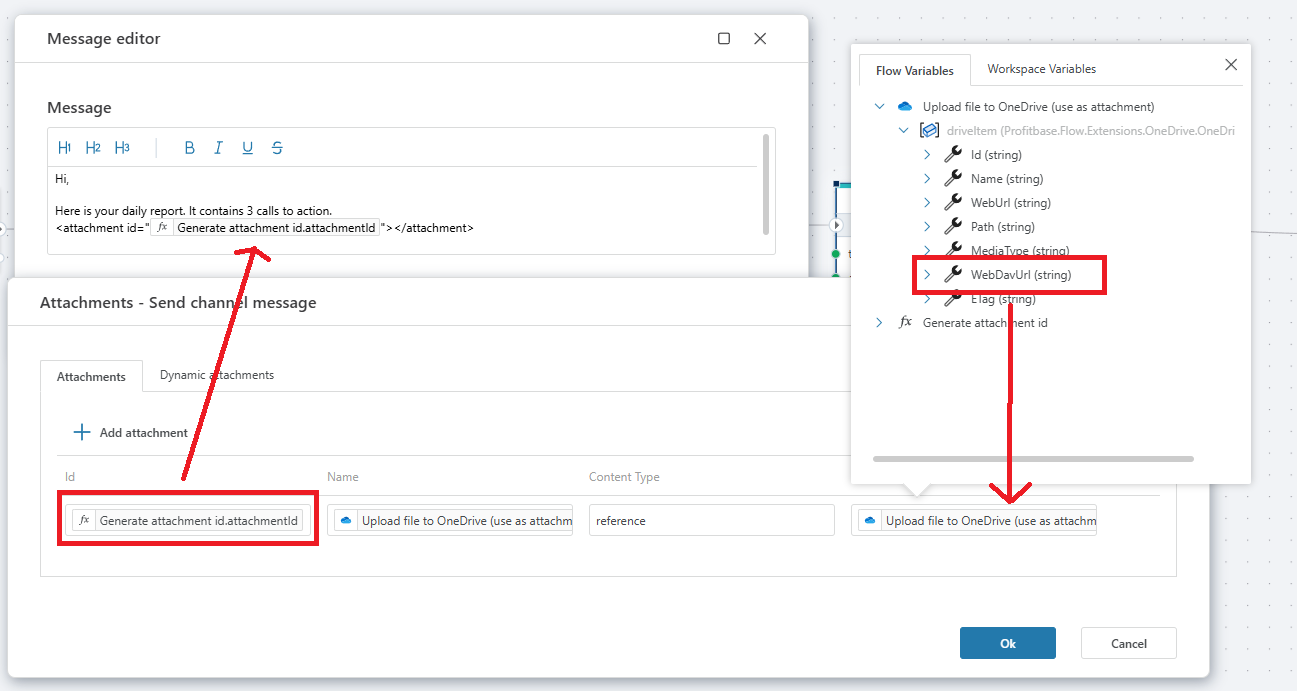
<attachment id="GUID"></attachment>. The Id in the attachments tag in the message must match the Id of the attachment in the Attachements dialog. (See example below)
| Name | Type | Description |
|---|---|---|
| Id | Required | The Id of the attachment. This must be a valid GUID. |
| Name | Required | The name of the attachment, for example the file name. |
| Content type | Required | The content type specifying the attachment type. This defaults to reference. |
| Content URL | Required | The location of the document in OneDrive / SharePoint. Use one of the OneDrive actions to retrieve the document from OneDrive and use the WebUrl or WebDavUrl property of the OneDriveItem as the Content URL. |
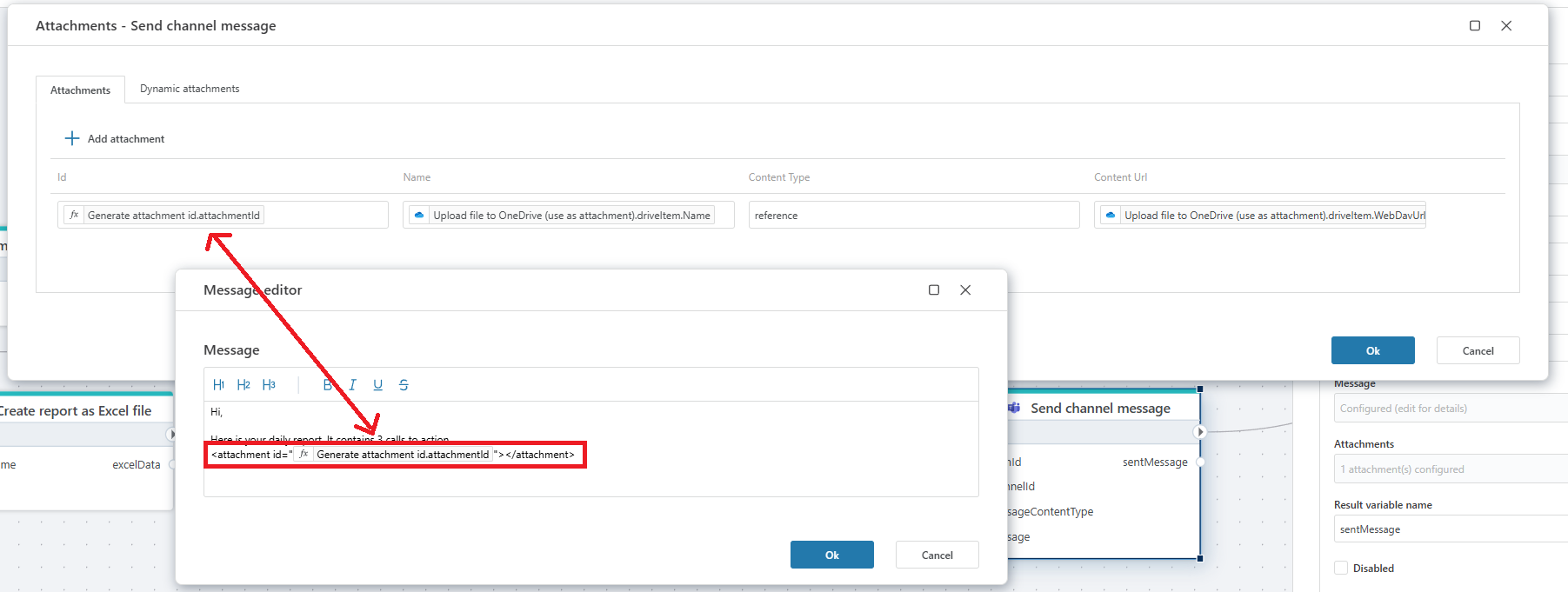
Figure: Attachments must be referenced by id in the message using the <attachment> element .
Example - Send a message with an attachment
As described above, in Teams an attachment is a reference to a document, not the document content itself. To send a Teams message with an attachment, the document must already exist in OneDrive or SharePoint. This example shows the required steps to send a Teams message with an attachment, as illustrated in the image below.
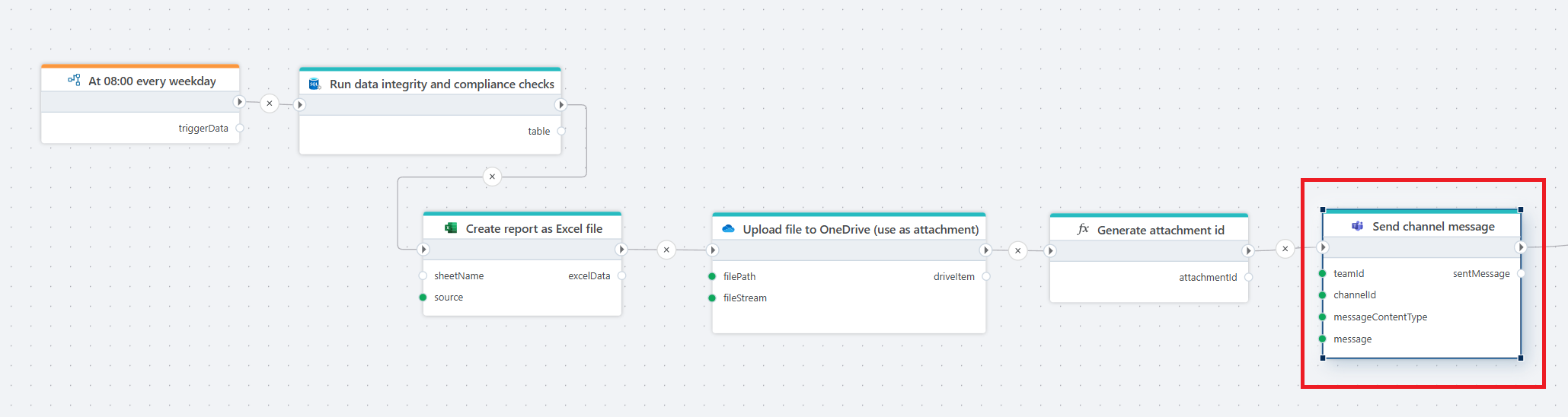
Our goal is to generate an Excel file with a list of TODOs, and post it to a channel together with a message. To post the file as an attachment with the message, the file must exist in OneDrive or SharePoint (this is simply how MS Teams attachments work). The first thing we do is therefore to generate and upload the file. We use the Upload file to OneDrive action to upload it, which returns the information about the OneDrive item needed to create the Teams attachment.
The Generate attachment ID is a Function that simply returns a GUID as a string. We'll use the attachment ID in both the message body and the list of attachments.
To define the attachment, open the Attachments property of the action and apply the following mappings:
| Attachment property | Map from |
|---|---|
| Id | The GUID generated by the Function action. |
| Name | The OneDrive item Name property. |
| Content type | The string "reference" (without quotes). |
| Content URL | The OneDrive item WebDavUrl (Or WebUrl) property. |
Then, in the Message, you must reference the attachment using the <attachment> tag. This is required by Microsoft Teams for including attachments in messages.
Your message...
<attachment id="the-guid"></attachment>