AI Chat
The AI Chat component allows you to embed an AI-powered chat interface inside a Workbook.
Users can interact with the chat to ask questions or trigger AI-powered tasks. The component sends user messages to a configured Flow that generates the AI response.
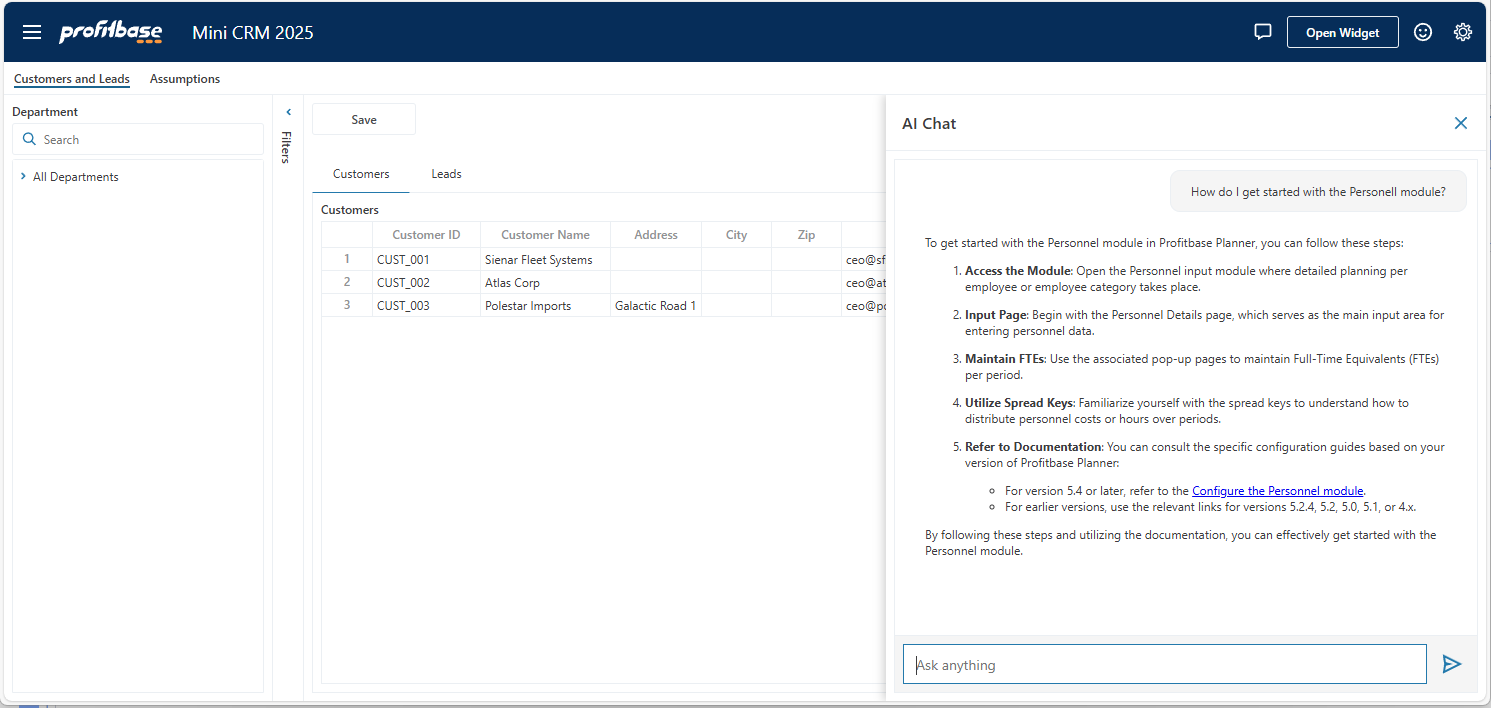
Configuration
The AI Chat component must be connected to a Flow that performs the chat completion (Anthropic AI, Azure AI, Google VertexAI or OpenAI). The Flow receives the user message, processes it (for example using an LLM or RAG pipeline), and returns the generated response.
Chat completion
| Name | Type | Description |
|---|---|---|
| Chat completion Flow | Required | The Flow that processes user messages and generates the AI response returned to the chat. |
| Enable feedback | Optional | Enables feedback controls in the chat UI so users can rate responses. |
| Feedback Flow | Optional | A Flow that receives feedback submitted by users when Enable feedback is enabled. |
| Default environment | Optional | The environment used when executing the selected Flows. |
Chat completion Flow
The Chat completion Flow is responsible for generating the response to user messages.
When a user sends a message in the chat:
- The message is sent to the configured Flow.
- The Flow processes the request (for example using an LLM, vector search, or business logic).
- The Flow returns the response.
- The response is displayed in the chat interface.
Enable feedback
When enabling feedback, the chat interface displays feedback controls for each AI response.
Users can provide feedback indicating whether the response was helpful or not.
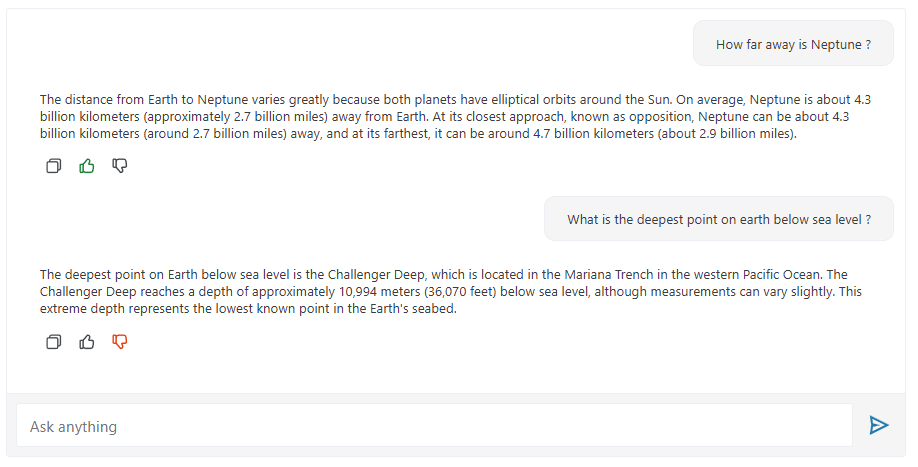
This feature can be used to:
- Monitor AI quality
- Collect user feedback on generated responses
- Identify incorrect or low-quality answers
- Improve prompts or retrieval logic
Feedback Flow
If feedback is enabled, you can specify a Feedback Flow to capture and process the submitted feedback.
Feedback is captured using the Chat feedback trigger in Flow.
When a user submits feedback:
- The chat component sends the feedback data to the configured Flow.
- The Flow can store the feedback, log it, or trigger further processing.
Events
The AI Chat component exposes interaction events that allow custom behavior to be triggered when messages are received.
Message Received
This event is triggered whenever the chat receives a message.
The event can be handled using JavaScript in the Workbook interaction editor.
Typical uses include:
- Triggering additional UI updates
- Logging chat activity
- Integrating the chat with other workbook components
Interaction
Interactions can be configured from the Interaction settings of the component.
Handlers can be attached to component events and executed when the event occurs.
For example, the OnMessageReceived handler can run custom actions when a message is received in the chat.
Typical architecture
A typical AI chat implementation in InVision includes:
- AI Chat component in a Workbook
- Chat completion Flow that processes messages
- Optional vector database for RAG scenarios
- Optional Feedback Flow for capturing user feedback
Get started
To get started using the AI chat component, please watch the video below.
Create an AI chat solution using InVision and Flow
This video shows how to build an AI chat solution using Hypergene InVision and Flow. It includes how to populate a vector database, and use the vector database in a RAG-based chat completion flow to answer user questions from PDF product sheets.