Worksheet
Actions
Load Data
Use this action to load or refresh the table. By default, this will load data from the InVision data model based on the Worksheet configuration. If, however, you want to load data to the Worksheet using Flow instead, you can call UseFlow(...) in Load Data instructions.
Read more about calling UseFlow here.
Example - load data using Flow instead of InVision
In the Load Data action of the Worksheet, add this call to the Instructions script.
The data will be loaded from a Flow returning a DataPackage.
UseFlow("Name of the Flow in the Solution");
Save Data
Use this action to save all of the changes to the database.
Send Data
Use this action to send the data in the Worksheet directly to Flow for processing, and optionally get back an updated data set.
You will typically use this action instead of Save Data if you want to use Flow to apply custom, server-side business logic, on the data in the Worksheet. This typically involves advanced calculations requiring access to data stored in databases or other external systems such as files or HTTP APIs.
If the Flow returns a DataPackage, the data in the Worksheet is updated accordingly.
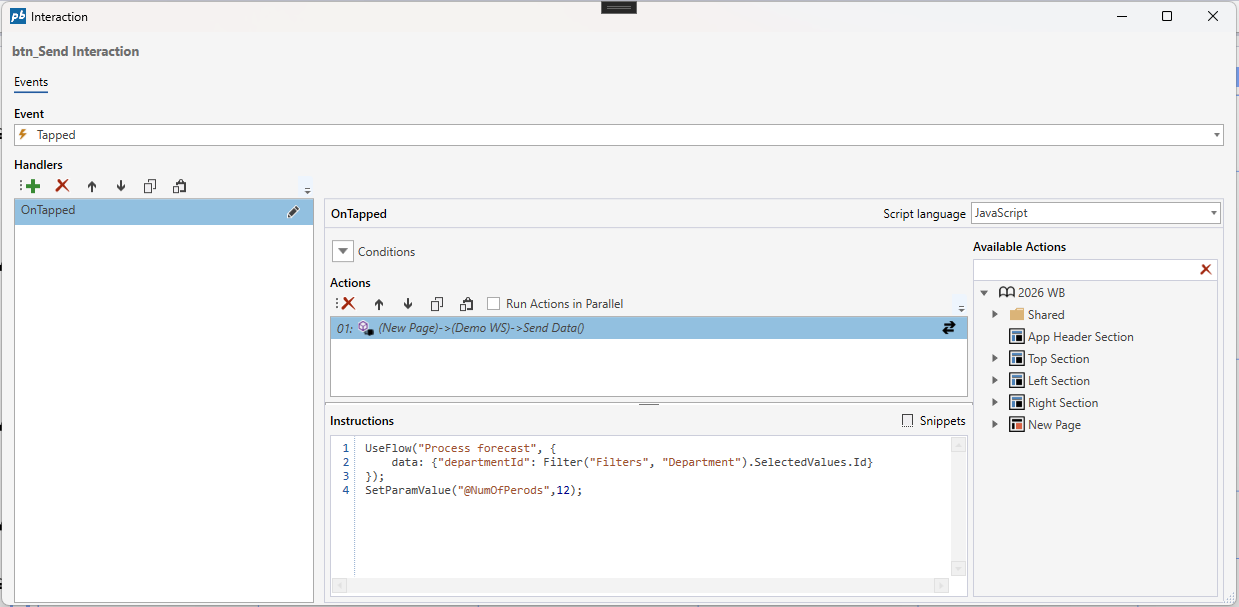
To send data in the Worksheet to Flow, call the UseFlow(...) function in the Send Data instructions.
Read more about calling UseFlow here.
Example
UseFlow("Update forecast", {
    environment: 'Production', // or 'Development' or 'Test'. Leave blank to use default
    data: {
        departmentId: "sales-NO",
        version: "Jan-26-01"
    }
});
Add Item
Use this action to add new row to the table.
ExecuteExpression
Executes one or more instructions.
Unload Data
Unloads the data.
Validate Data
Validates data. Run it if you want to run the Cell Validation rules before data is saved, and optionally prevent the save process for the particular Worksheet from executing if the validation fails.
Validate(terminateOnValidationFailed : boolean | Eaze expression)
Recalc
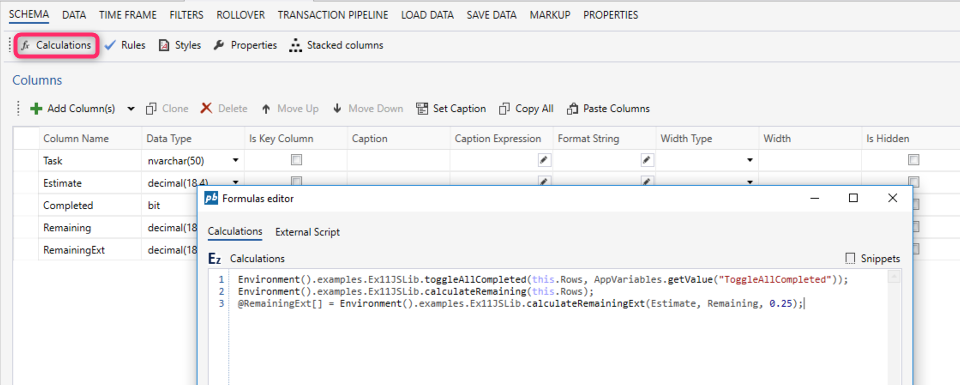
The Recalc action triggers the execution of the formulas script in the spreadsheet. You can call SetDataModified(…) or Refilter(...) in Recalc actions.
Events
Data Modified
This event is raised when data in a table is modified.
Cell Action Link Tapped
This event is raised when an action link cell in a table is clicked. The payload of the event is the name of the column that was clicked and the row object.
Custom Context Menu Action Executed
This event is raised when a (custom) Context Menu Action is clicked. The payload of the event is the name of the action that was clicked, the column and the row object that the cell belongs to.
Extension Context Menu Action Executed
This event is raised when an Extension Context Menu Action is clicked. The payload of the event is the name of the action that was clicked, the column and the row object that the cell belongs to. The event handler will be preserved during Package upgrades, meaning customers / partners can use this feature to extend standard products like Planner with custom business logic.
Item Added
This event is raised when you add a new item to the table, for example, a new row.