Create or Open Excel workbook
Creates a new, empty Excel workbook, or opens an existing .xlsx or .xlsm file, so you can add one or more sheets to it. Use this action together with Add sheet to Excel workbook and Convert Excel workbook to file bytes or Convert Excel workbook to file stream when you need to produce an Excel file with multiple sheets, or append sheets to an existing file.
Example 
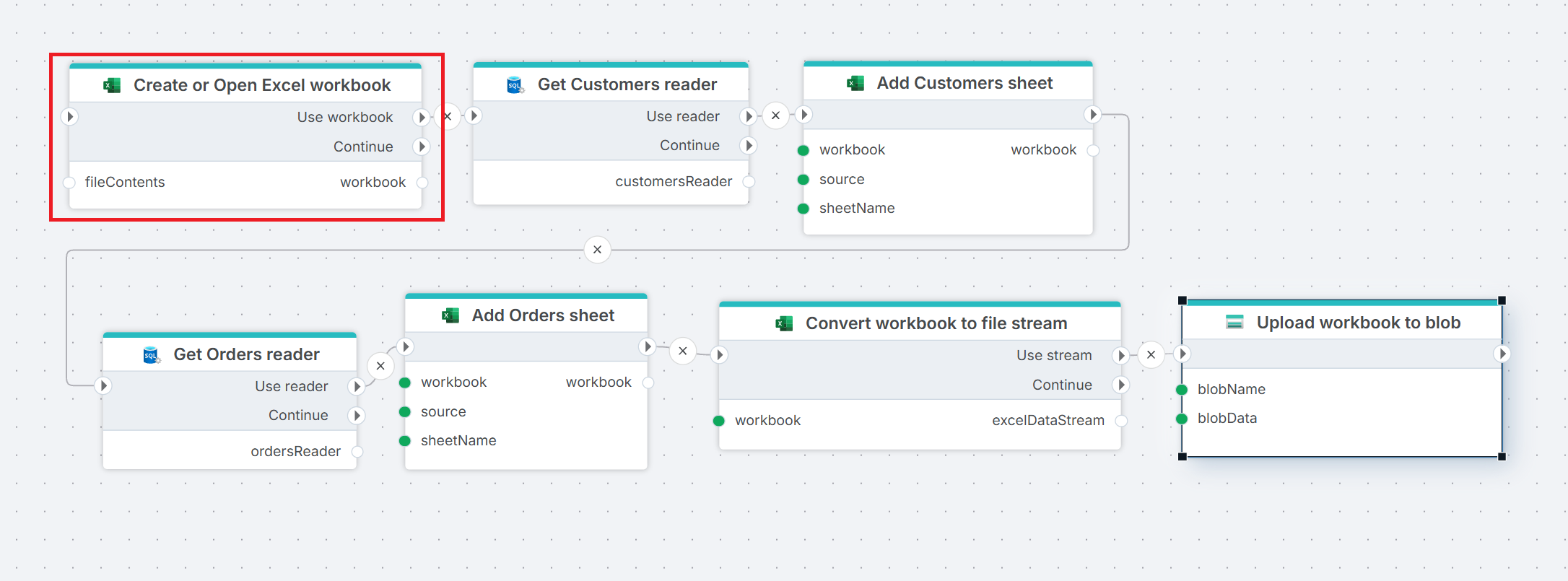
This Flow exports customers and orders from SQL Server to one Excel file with two sheets. Create or Open Excel workbook leaves fileContents empty, so it creates a new, empty workbook and exposes it as workbook in the Use workbook branch. Inside that branch, Get Customers reader (Get DataReader) provides customersReader, which Add Customers sheet (Add sheet to Excel workbook) writes to the first sheet. Get Orders reader and Add Orders sheet then add the orders to a second sheet in the same workbook. Finally, Convert workbook to file stream (Convert Excel workbook to file stream) produces excelDataStream, which Upload workbook to blob (Upload Blob) saves to Azure Blob Storage from the Use stream branch. When the Use workbook branch completes, the workbook is closed automatically. To add sheets to an existing file instead, connect a byte array or stream to fileContents.
Properties
| Name | Required | Description |
|---|---|---|
| Title | No | The title of the action. |
| File contents | No | An existing Excel file (.xlsx or .xlsm), provided as either a stream or a byte array. Leave empty to create a new, empty workbook. |
| Workbook variable name | No | The name of the variable you can use to reference the workbook in other actions. |
| Disabled | No | When checked, the action is skipped during Flow execution. |
| Description | No | Additional notes or comments about the action or configuration. |
Returns
An Excel workbook object that you pass to the Workbook property of Add sheet to Excel workbook, Convert Excel workbook to file bytes and Convert Excel workbook to file stream.
Output ports
| Port | Description |
|---|---|
| Use workbook | Runs while the workbook is open. Connect all actions that work with the workbook here, including loops, Add sheet and Convert workbook actions. |
| Continue | Runs after the Use workbook branch has completed and the workbook has been closed. |
Remarks
- When
File contentsis provided, the existing sheets are preserved, and new sheets are appended after them. Existing sheets are never overwritten. - If a new sheet has the same name as an existing sheet, a suffix such as
(2)is added to make the name unique. - Macro-enabled workbooks (
.xlsm) keep their format and VBA project when converted back to a file. Legacy.xlsfiles are not supported. - The original file contents are not modified. To keep the changes, convert the workbook to a file and save or upload the result.
- All workbook operations must run inside the Use workbook branch, one after the other. The workbook is closed and released automatically when the branch completes, also if an error occurs.
- This action does not read data from the worksheets. To read data from an Excel file, use Convert Excel file to DataReader, Convert Excel file to DataTable or For each row in Excel file.
- To create a file with a single sheet from a DataTable or DataReader, Convert DataTable or DataReader to Excel file bytes or Convert DataTable or DataReader to Excel file stream is simpler.
See also
- Add sheet to Excel workbook — appends a sheet from a DataTable or DataReader.
- Convert Excel workbook to file bytes — converts the workbook to a byte array.
- Convert Excel workbook to file stream — converts the workbook to a stream.
Excel: Videos / Getting started
Send email with Microsoft 365 Outlook
This video shows how to export data to an Excel file, and send it as an email attachment using Microsoft 365 Outlook.